

Apple TV tvOS 26.4: 4 Big Changes Worth Installing Now
Apple TV tvOS 26.4 is officially out of beta, and it brings four meaningful changes to the Apple TV 4K — including the continuous audio connection feature I've been hammering on here at Techthusiasm for weeks. If you're sitting on the fence wondering whether to upgrade, let me save you the suspense: yes, install it. Software updates always carry a quiet payload of bug fixes, performance gains, and stability tweaks behind the headline features, and this release is no exception.
📺 Watch the full details on YouTube: What You Need to Know About Apple TV 4K tvOS 26.4 | Available Now!
Let's break down what's new.
Goodbye iTunes Movies and TV Show Apps
The first change is what's missing. Apple has finally pulled the iTunes Movies and iTunes TV Show apps from tvOS entirely. They've been redundant for a while — the main TV app absorbed their functionality a long time ago — and I'd kept mine buried in a folder on the second page just to get them out of the way. Now they're gone for good.
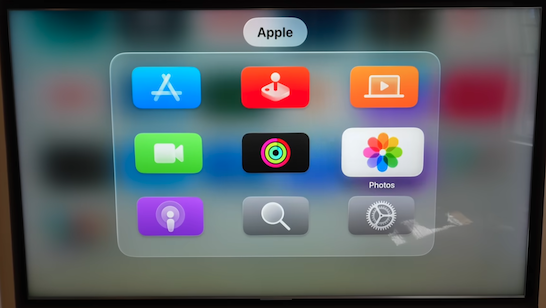
If you had them sitting on your home screen, they'll vanish after the update. No action required. I'm glad to see Apple clean house here, and I hope the energy goes into making the TV app itself a sharper experience.
Continuous Audio Connection: The Big One
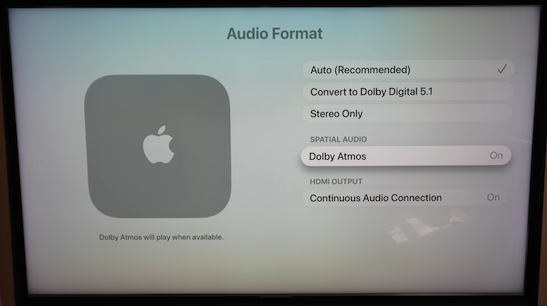
This is the feature I've spent the most time on, and for good reason. Continuous audio connection lives under Settings → Video and Audio → Audio Format → HDMI Output, and it fundamentally changes how the Apple TV hands audio off to your AVR, processor, or TV.
What It Actually Does
Normally, your Apple TV switches audio formats on the fly — PCM for UI sounds, Dolby Digital for one show, Dolby Atmos for another. Every format change forces your audio system to resync, and depending on your gear, that resync window can mean dropped audio, delays, or those nasty pops and clicks some systems produce when handshakes happen.
Continuous audio connection wraps everything — UI beeps, stereo content, Dolby Digital, Atmos — in a single Dolby MAT container. Your audio system sees one consistent format and never has to renegotiate. No resync delays. No pops. Just a steady connection.
The Requirements and Trade-offs
Two things to know before you go looking for this feature:
You need Dolby Atmos enabled. Turn off Atmos in the audio format menu and continuous audio connection disappears entirely. If your audio system isn't Atmos-capable, the option won't show up at all.
It's HDMI-only. The setting is explicitly labeled "HDMI Output" for a reason. If you're running Bluetooth, AirPlay, or HomePods, this isn't for you.
The trade-off comes down to upmixing. Because everything stays in the Dolby MAT wrapper, your AVR or processor can't apply a Dolby Surround upmixer to non-Atmos content the way it normally would. So you're picking between connection consistency and upmix flexibility.
I run my Trinnov-based dedicated home theater with this feature off because I want the upmixer working on stereo and 5.1 content. In my living room, where I value rock-solid handshakes in a core two-channel system over upmixing, I leave it on. Pick your priority.
I have two deeper videos on this exact feature if you want the full breakdown — the trade-offs deserve more than a paragraph.
Genius Browse: Smarter Content Discovery
Open the TV app, head to the Home tab, and scroll down to find the new Genius Browse section. Apple is leaning into AI-flavored content discovery with curated buckets like "White Knuckle Adventure" and other thematic groupings.
Click into one and it serves up recommendations across multiple streaming sources — not just Apple's own catalog. The picks are informed by your watch history and the content you've engaged with on the platform. For me, that means a lot of Star Wars, Marvel, and sci-fi, which tracks.
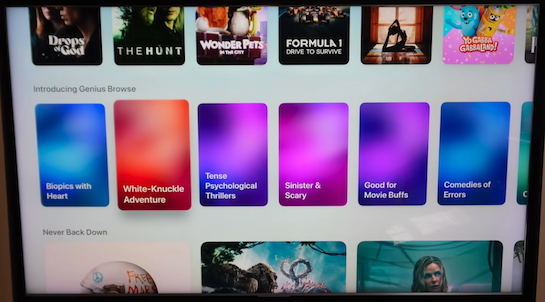
If you're the kind of viewer who opens the TV app and stares at it for ten minutes wondering what to watch, Genius Browse is a useful tool. The categories appear to rotate over time, so it's worth checking back.
On-the-Fly Subtitle Style Switching
The last change is one I genuinely love: dynamic subtitle style switching directly from the playback overlay.
Hit the subtitle icon during playback in any app using the default Apple TV player, and you'll now see style options alongside the usual on/off and language picks. Apple ships four presets:
Classic — the old standard, opaque background
Large Text — same style, bigger
Outline Text — text with a stroke, no background fill
Transparent Background — text only, no fill
Outline text is my pick. Classic is too obtrusive for me, and I don't need the larger sizing — though if you've got a smaller display far from the seating position, large text is genuinely useful.
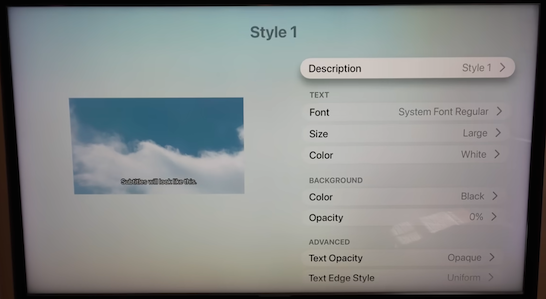
You can also build your own styles under Settings → Accessibility → Subtitles and Captioning → Manage Styles. Custom fonts, sizes, colors, background colors, opacity, edge styles — the whole kit. It's non-destructive, so you can edit, trash, or rebuild styles freely. For accessibility needs or just personal preference, this level of control is overdue.
The real win is being able to swap styles mid-content without leaving the playback session. Different shows benefit from different stylings, and now you can match accordingly.
Key Takeaways
iTunes Movies and TV Show apps are gone — fully absorbed into the main TV app
Continuous audio connection eliminates format-switch pops and resyncs by wrapping all audio in Dolby MAT, but requires Atmos and disables upmixing on non-Atmos content
Genius Browse adds AI-driven, cross-platform content discovery in the TV app
Subtitle styles are now accessible directly from the playback overlay, with full custom style creation under accessibility settings
Worth installing — bug fixes and stability gains alone justify the update
Building or Upgrading Your Home Theater?
Apple TV is one piece of the puzzle. Whether you're building a dedicated theater room, dialing in a flagship 2-channel system, or upgrading the AV gear in your living room, I help clients across the country pick the right equipment and put it together properly. I'm an authorized dealer for Kaleidescape, Trinnov, JVC, Sony, Epson, Denon, Marantz, SVS, Focal, Perlisten, Stewart Filmscreen, and more. Get in touch today!