

How I Set Up Infuse with My Ubiquiti UNAS Pro 8 for Local Media Playback
I've gone all in on Ubiquiti gear around the Techthusiasm household over the last several months — the most recent addition being the UNAS Pro 8, which fully replaced my Synology NAS. With that transition done, there was one loose end I hadn't tied up yet: getting my local media library reconnected so we could actually watch the stuff we have on the server. Time to fix that.
📺 Watch the full explanation on YouTube: Ubiquiti NAS x Infuse for Apple TV 4K for Local Media Playback
If you watch the channel, you know I'm a Kaleidescape guy through and through. I also stream plenty. But let's be honest — there's content out there that just isn't available on streaming or Kaleidescape. Obscure Japanese Transformers cartoons. Older kaiju films. Cartoons that streaming services pulled and never put back. That's exactly the gap local media fills for me, and Infuse on Apple TV is how I bridge it.
Why Infuse Is My Pick for Local Media on Apple TV
Infuse is one of the best pieces of software in the Apple ecosystem for accessing local media. It runs on Apple TV, Mac, iPhone, and iPad, and the entire system — your shares, your metadata, your watch state — syncs through iCloud. Set it up once, and every Apple device in your house is on the same page.
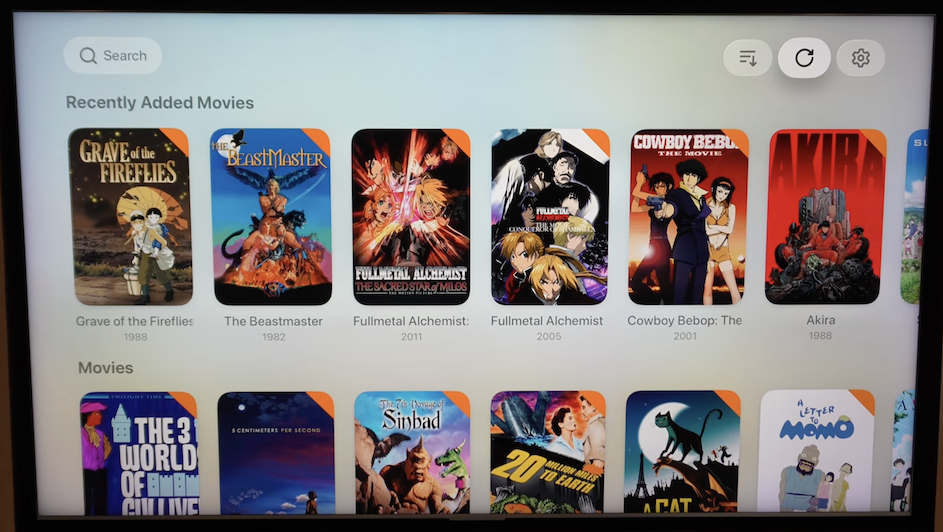
The development team is constantly shipping updates and new features. It's polished, it's fast, and it doesn't try to be a server. That last part matters. Infuse is decentralized — it just references your media on the network share. It doesn't need to write back to your NAS, doesn't need admin access, doesn't need to run a heavy backend service somewhere. That keeps the security model clean and the setup simple.
Are there other options? Sure. Plex, the built-in Computers app on Apple TV, Jellyfin, and others. I prefer Infuse because of the Apple ecosystem integration and the decentralized approach. My library is a curated, minimal collection — I'm not trying to host a media server for massive amounts of content nor sharing. I just want to play back the stuff I cherish that I can't get anywhere else.
Setting Up the Ubiquiti UNAS Pro 8 First
Before touching the Apple TV, the NAS side has to be right. I have two storage pools on my UNAS Pro 8 — one large pool built on 12TB drives for the main storage, and a smaller pool for Time Machine backups. The media lives on the larger storage pool alongside my documents and Techthusiasm video assets.
Use Separate Shared Drives, Not Folder
Here's something I want to call out for anyone setting up a NAS for media serving — or really any NAS use at all. Think about access control before you start dumping files anywhere.
It would be tempting to make a single shared drive and just have folders inside it for documents, media, and work assets. Don't do that. The UniFi system gives you much better access control when you split content into separate shared drives, because you can then create users with specific roles and limit them to only what they need. You can't apply that same per-folder granularity within a shared drive.
So on my UNAS, I have three separate shared drives on the main storage pool:
Techthusiasm — all my channel video assets and projects
Documents — personal and business documents and files
Media — the ripped content for playback
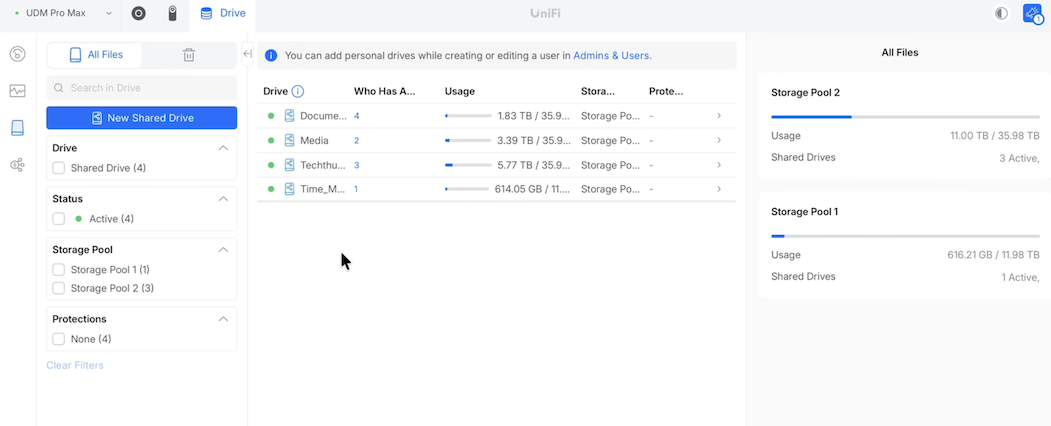
My kids help with editing for the channel, so they get access to the Techthusiasm drive. We all share documents. But Infuse has zero business touching either of those — it only needs to see media. Compartmentalize from the start.
Create a Dedicated User with Read-Only Access
In the UniFi People section, I created a single user named "Infuse." That naming makes life easier — when I'm logging in from the Apple TV, I know exactly which credential set I'm grabbing.
This is a simple local user. No Ubiquiti account tied to it, no admin privileges, no fancy authentication. Just a basic username and password with file services enabled. For home use, that's all you need. If you want a more secured setup with full Ubiquiti account integration, that option exists too.
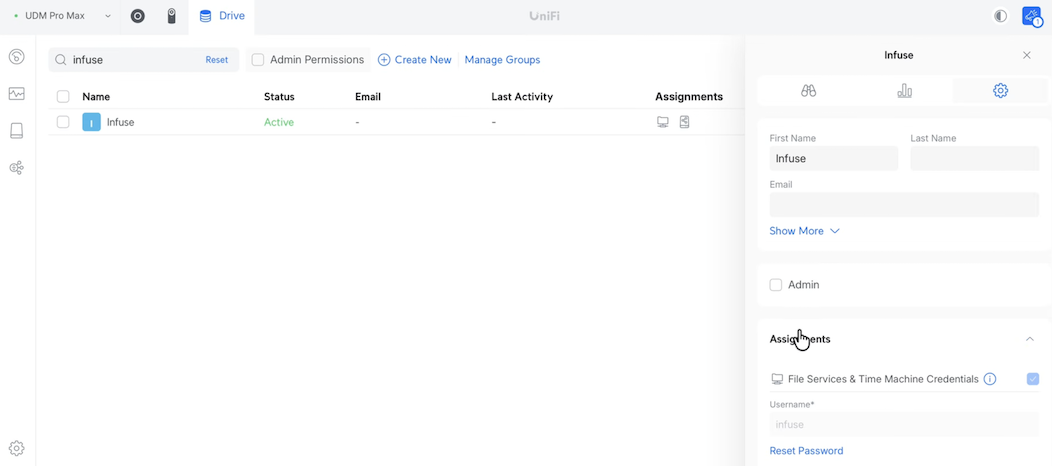
The critical part: this user gets Viewer access to the media drive only. Not owner, not editor — viewer. Infuse doesn't need to write anything to the share. It doesn't store metadata files alongside your media (some other servers do, which would require read/write). It just references the files. Read-only is exactly the right level of access.
This is the principle of least privilege applied to home media. If something ever goes sideways with that account, the worst case is somebody can read your movie files. They can't delete, modify, or write anything.
Connecting Infuse on the Apple TV
With the NAS side configured, the Apple TV setup is straightforward. I'm running the latest tvOS on an Apple TV 4K, with Infuse downloaded from the App Store.
Open Infuse, go to the gear icon for settings, hit Shares, and Add Media Server.
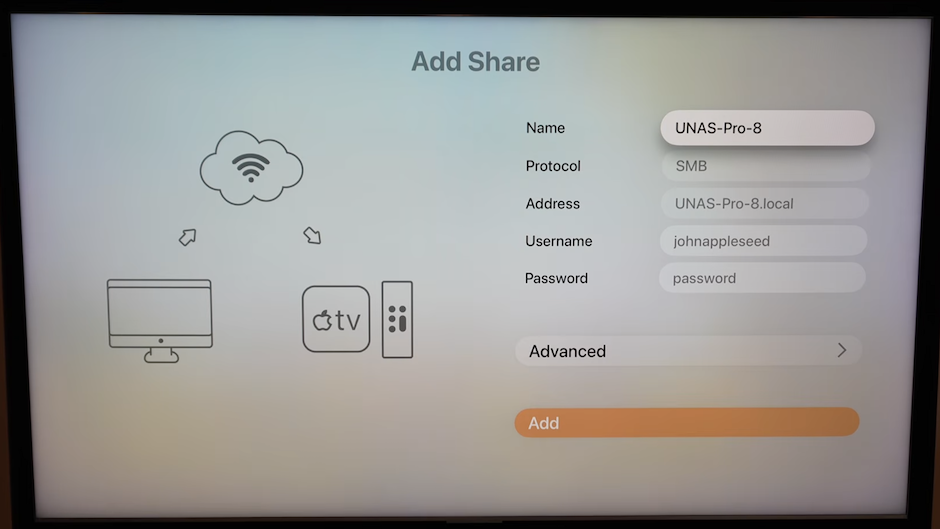
Network discovery picks up the UNAS Pro 8 immediately — no need to type in an IP address. Select the UNAS, use SMB as the protocol, and enter the username and password you just created on the NAS. I keep my iPhone handy for typing passwords on Apple TV, which is a million times faster than the on-screen keyboard.
Under advanced settings, you can specify SMB versions, ports, and workgroups, but the defaults are fine for a clean modern network. Make sure auto-scan and artwork features are enabled.
Once you're authenticated, navigate to the media share. You'll only see what your user has permission to see — try to open the documents drive and you'll get blocked, which is exactly what we want. Press and hold the touch surface on your remote to add folders to favorites. I added Movies and TV Series independently rather than the parent media folder, so they show up as top-level destinations in the Infuse UI.
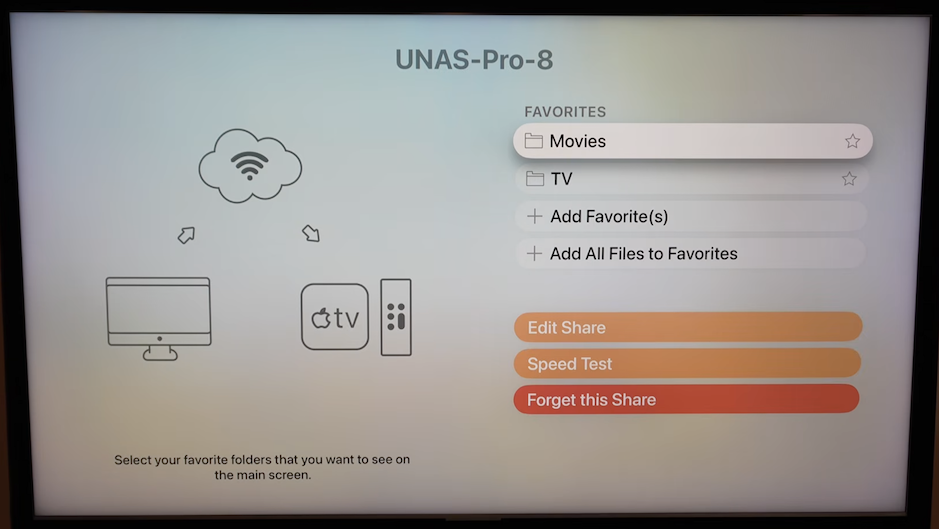
There's also a built-in network speed test for any video file. Mine flies — wired Apple TV on a fully UniFi network, plenty of headroom for whatever I throw at it.
Library Indexing and Metadata
Once the share is connected, Infuse starts indexing immediately. My library has about 115 movies, 800 TV episodes, and 191 items it flagged as "other" during the scan. Indexing was fast — done in the time it took me to step away from the camera.
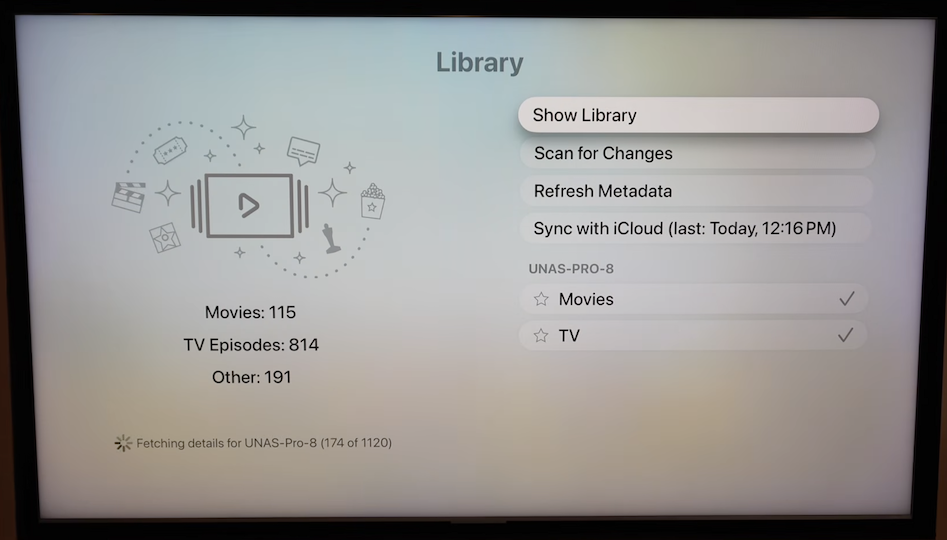
Once it's indexed, all that library data syncs through iCloud. Load Infuse on my Mac, iPhone, or iPad and the entire library is already there. No reconfiguration. No re-pointing to the NAS. That's the part of Infuse that's hard to overstate — it just works across every Apple device.
Expect Some Metadata Cleanup on Obscure Content
Like every metadata indexing system, Infuse is going to miss some stuff. In my case, it had trouble with one of the older Godzilla films, missed an entire Transformers cartoon series, and missed Voltron. That's not Infuse's fault — that's the reality of obscure or older content with inconsistent naming.
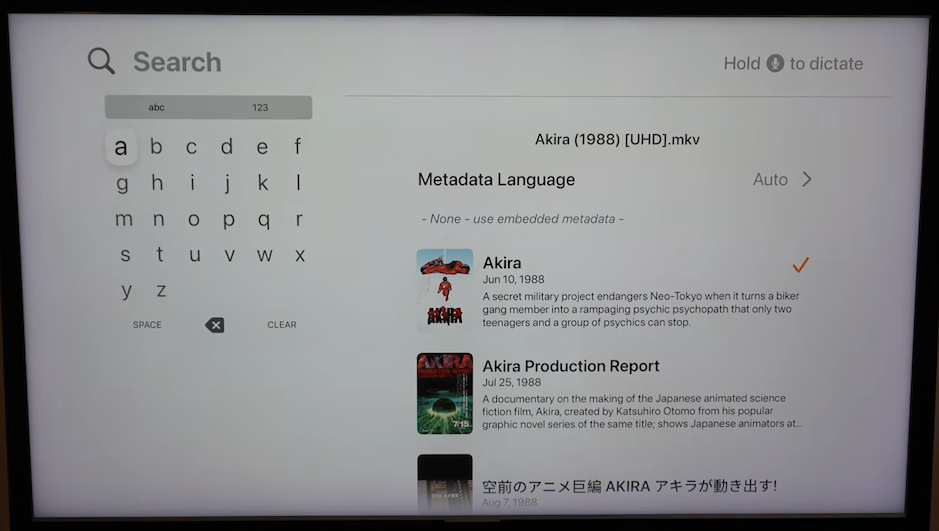
The fix is either renaming files on the NAS to match what the metadata services expect, or using Infuse's built-in edit option. Open any item, hit edit, search for the correct title, and force the link manually. The detail view also gives you full technical info on each file — codec, bit rate, frame rate, resolution, file size. Useful when you're verifying a rip.
Why Local Media Still Matters
The Voltron situation is a perfect example of why I bother with this at all. Legendary Defender was on Netflix and left at the end of 2024. Seasons 1-6 are buyable on Fandango and iTunes. Seasons 7 and 8? Gone. Not for sale, not streamable, not accessible anywhere legitimately. The rights holders made the final seasons of an excellent show literally impossible to watch.
This is the case for preserving access to key media you care about. Streaming licenses expire. Catalogs shrink. Services shut down. Physical media plus a NAS plus a good playback app can help keep the content you love accessible — without having to dig out a disc every time.
Key Takeaways
Infuse is my preferred Apple TV local media app — decentralized, iCloud-synced across all your Apple devices, and constantly updated
Split your NAS content across multiple shared drives instead of a single drive with folders — it gives you proper per-asset access control
Create a dedicated user just for your media server software with read-only viewer access to the media drive
The UNAS Pro 8 doesn't run apps like Synology did, so Infuse's no-server architecture is a perfect fit
Expect to manually fix metadata for obscure or older content — it's a normal part of running a local library
Local media still matters because streaming services pull content all the time, sometimes permanently
Need Help Building Your Setup?
If you're thinking about a serious home theater or whole-home AV upgrade, that's what I do. Techthusiasm is a dealer and integrator for the gear I actually use and recommend — projectors, screens, AV processors, amplifiers, speakers, subwoofers, source devices, and media servers like Kaleidescape. Get in touch today!